Dark theme and hints➧
Overview
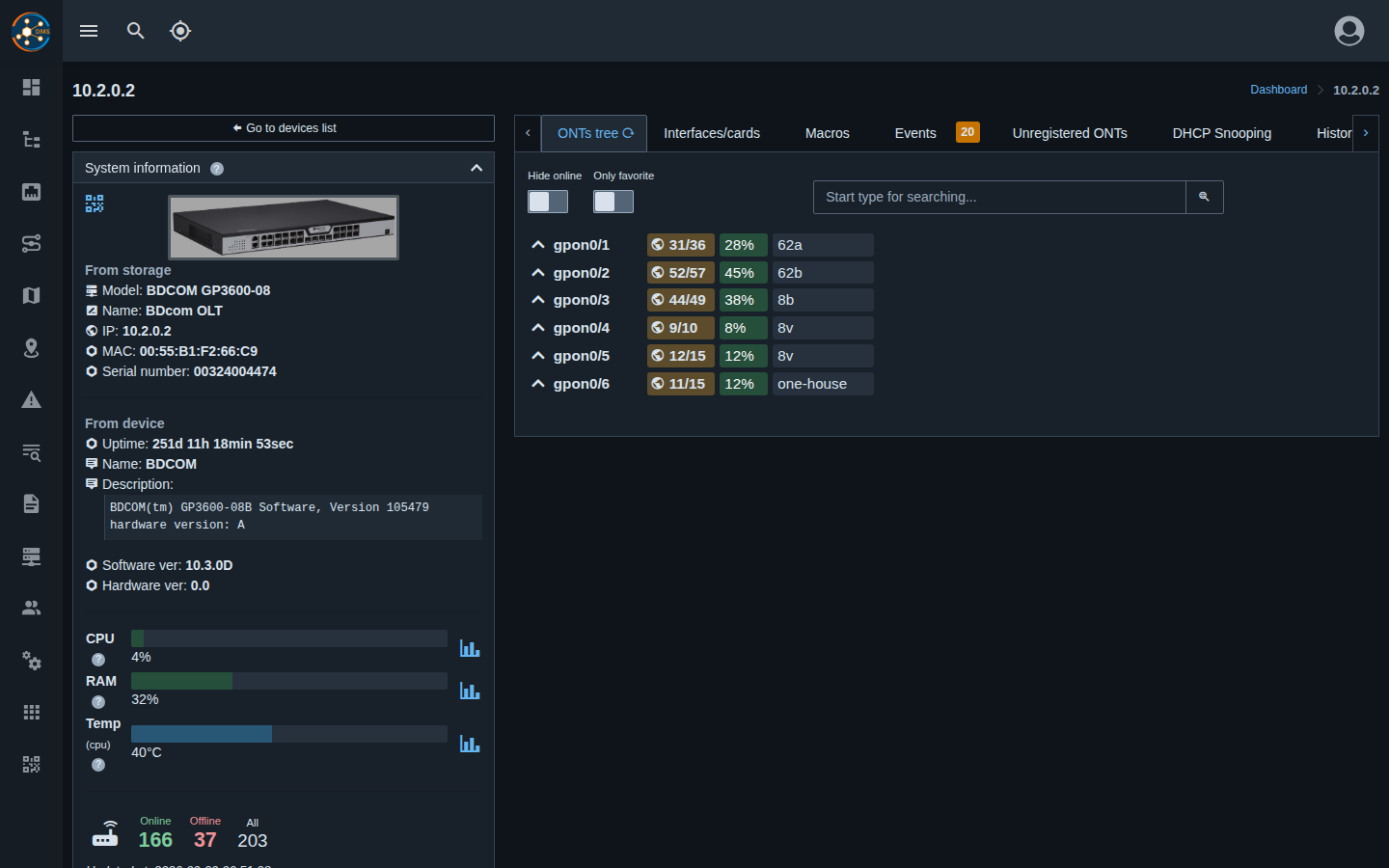
Starting with version 0.31 the web panel has a dark theme and field hints on device, OLT and ONU cards.
Dark theme➧
How to enable➧
- Click the profile icon in the top right corner.
- Choose "Dark theme" (in the dark theme the item is called "Light theme" — to switch back).
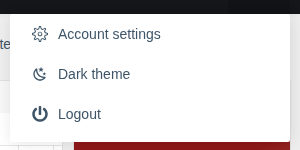
The switch is available in the mobile layout too.
How it works➧
- Two themes are available — light and dark.
- Until you pick a theme manually, the panel follows the operating system or browser theme and switches along with it (e.g. with automatic night mode).
- A manual choice is remembered in the browser on this device: on another computer or phone the theme has to be chosen separately. It's not saved in the account settings.
- The theme is applied instantly in all open tabs and is set before the page loads — no light "flash".
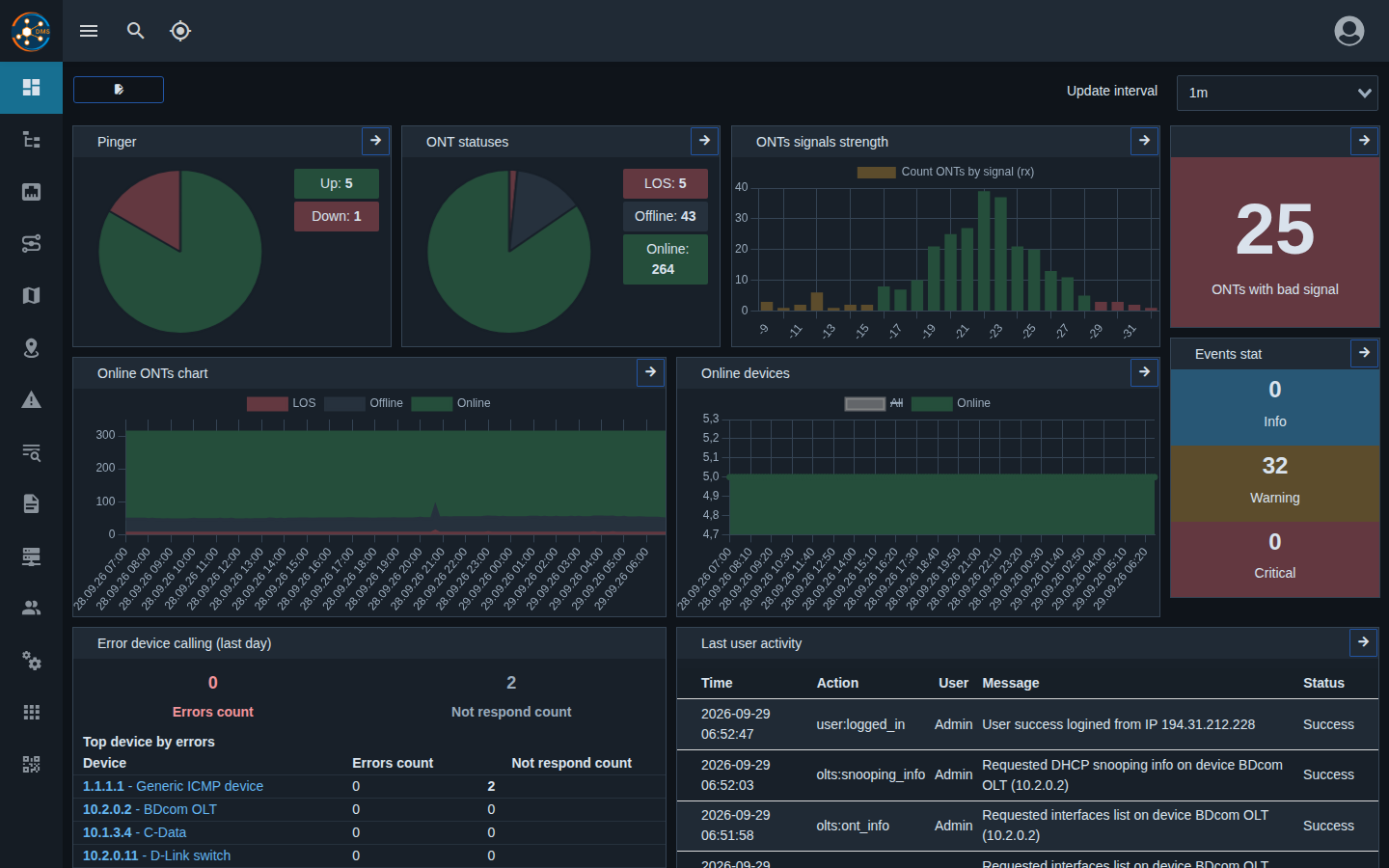
- Tables, date pickers, topology, map, console, logs, port and cable diagnostics blocks, ONU statuses, charts and dashboard widgets are adapted for the dark theme.
Field hints➧
Next to card and field names on device, OLT and ONU pages there is a "?" icon. Hover over it (tap on a phone) to see an explanation: what the value means, its units and where it comes from.
To hide the icons, turn on "Disable tooltips" in Account settings → "Portal settings" → "Global". The setting is saved in the account.