Device groups➧
Overview
Groups combine devices (e.g. by district, branch or hardware type) and define which devices a user sees: each user sees only devices from the groups assigned to them.
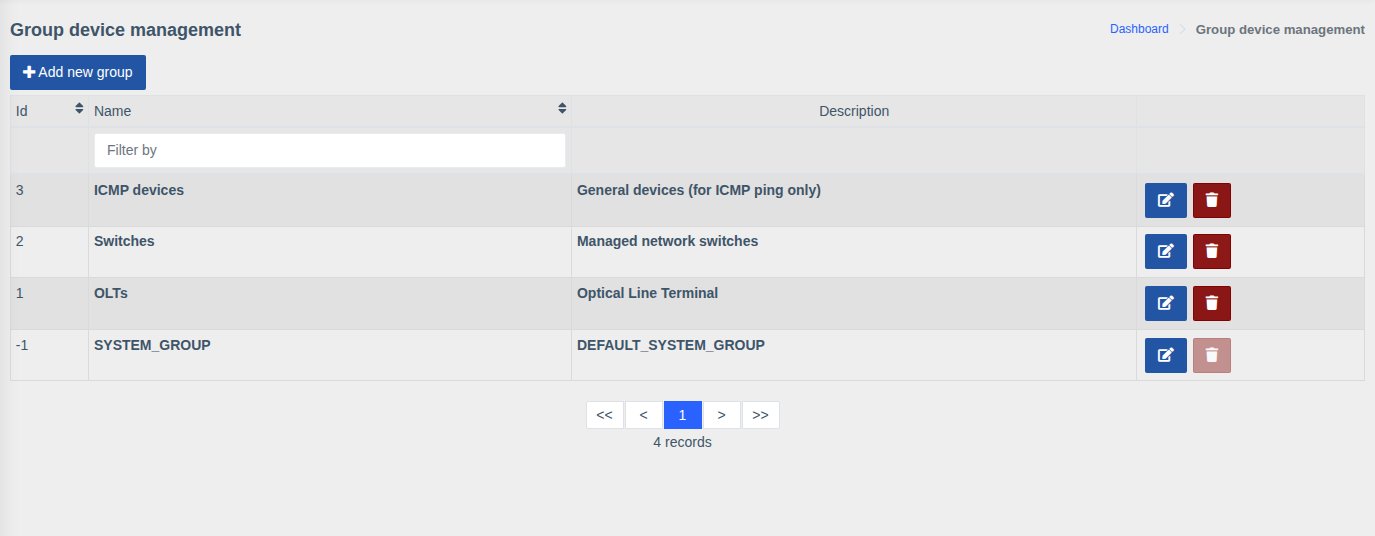
Menu: Device management > Groups.
Creating a group➧
- Click "Add new group".
- Enter a Name and optionally a Description.
- Save.
Row buttons edit and delete the group.
How groups affect access➧
- A device can belong to several groups — the Groups field in the device card.
- Groups are assigned to a user in the Device groups field of their account.
- In lists, search, on the map, in events and notifications a user sees only devices from their assigned groups. Failure notifications are also sent only to users with access to the device.
- The exception is the "Analytics" permission: it shows information about all devices regardless of groups, so grant it to administrators only.
System group
The SYSTEM_GROUP group is created automatically and can't be deleted.
Example
For installers of the "North" district create a North group, add the district's hardware to
it and assign it to the installers. They won't see hardware of other districts.
Permissions
Managing groups requires the "Device groups management" permission.