Devices➧
Overview
The device management page is the registry of hardware WildcoreDMS works with: adding new devices, changing their parameters, disabling and deleting them.
Menu: Device management > Devices.
Device list➧
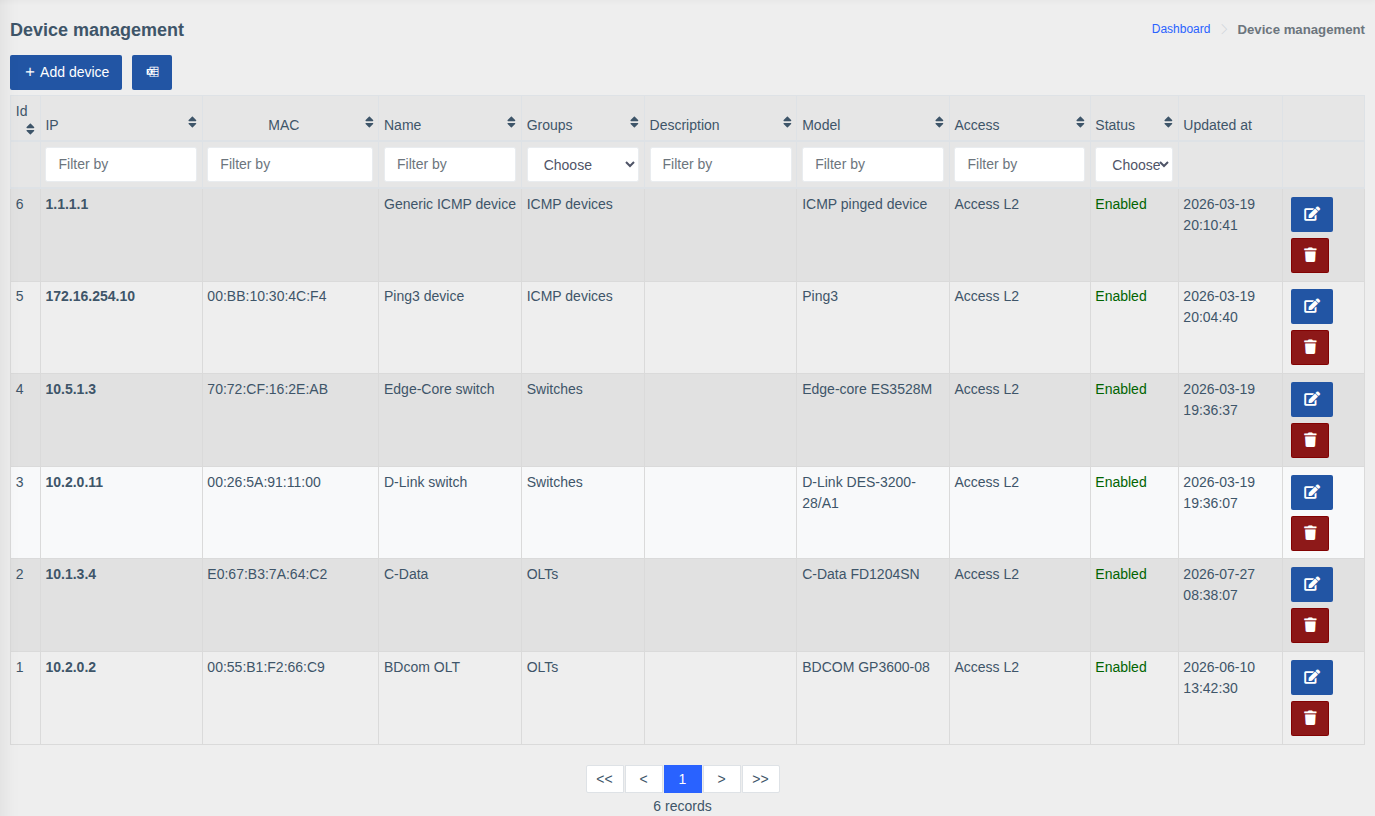
The table has Id, IP, MAC, Name, Groups, Description, Model, Access, Status and Updated at columns. Every column can be filtered (field or list under the header) and sorted by clicking the header. The Status filter quickly finds disabled devices.
Row buttons edit and delete the device.
Adding a device➧
- Make sure an access with the correct SNMP communities exists.
- Click "Add device".
- Enter the IP and choose the Access.
- Click "Get info from device" — WildcoreDMS polls the device over SNMP and fills in Model, Name, Location, MAC and Serial number (depending on what the hardware reports).
- Choose Groups, change the name and description if needed.
- Click "Create".
Tip
If the model wasn't detected automatically, choose it from the list manually. Bulk adding — via CSV import, see Import devices.
Editing a device➧
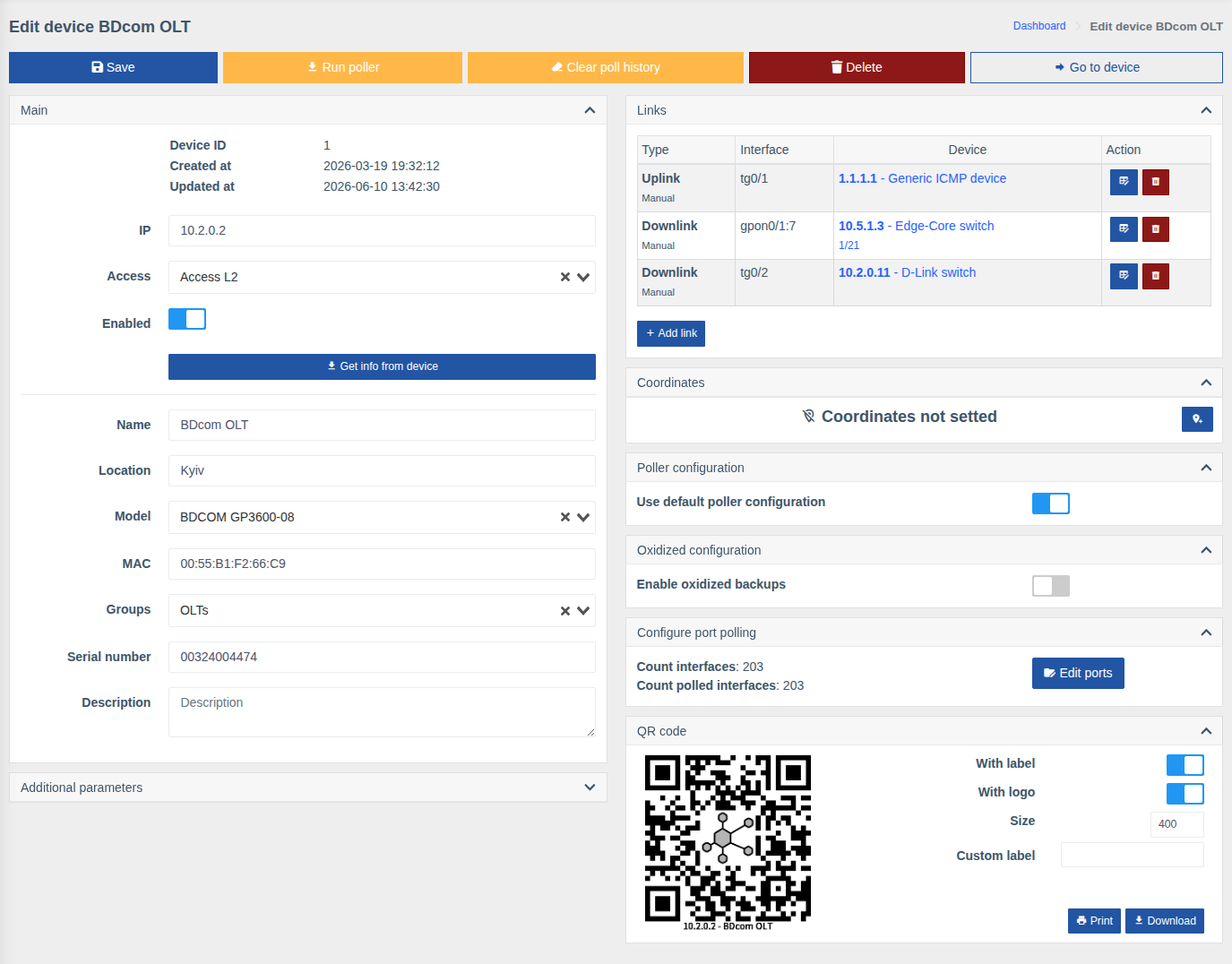
Action buttons➧
| Button | Action |
|---|---|
| Save | Save changes |
| Run poller | Run all device pollers in the background without waiting for the schedule |
| Clear poll history | Clear the device polling history (with confirmation) |
| Delete | Delete the device together with its interfaces and history |
| Go to device | Open the device page (dashboard) |
Main➧
| Field | Description |
|---|---|
| IP | Address WildcoreDMS uses to connect to the device |
| Access | Access with credentials |
| Enabled | A disabled device is not polled by background tasks and is excluded from autotopology, but stays in the system with all its settings |
| Name | Device name in lists, search and on the map |
| Location | Address or installation place |
| Model | Device model — defines how WildcoreDMS works with the device |
| MAC, Serial number | Device identifiers |
| Groups | Device groups — define which users see the device |
| Description | Free-form comment |
Other blocks➧
- Additional parameters — JSON with working parameters overriding the model's ones. Full list — Model and device custom parameters.
- Links — the device's connections to others (uplink/downlink). See Links.
- Coordinates — the device position on the map: the pin button lets you pick a point on the map.
- Poller configuration — custom poller intervals for this device instead of the model's, see Hardware Poller.
- Oxidized configuration — enable configuration backups for the device (if the Config backups component is installed).
- Configure port polling — number of interfaces and how many are polled; the "Edit ports" button disables metric storage for individual ports (see Hardware Poller).
- QR code — a label with a link to the device, see QR code Generator.
Permissions
The page requires the "Device management" permission. Running the poller from the card requires "Run poller on device dashboard".