Users➧
Overview
Managing staff accounts: creating them, assigning a role and device groups, disabling, changing passwords.
Menu: Users management > Users.
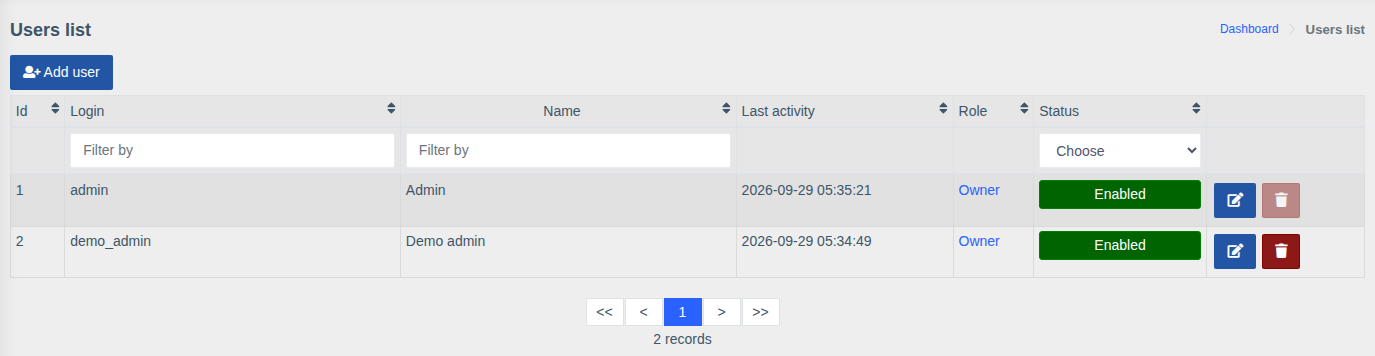
The list shows the login, name, last activity, role and status. It can be filtered by login, name and status.
Creating and editing➧
Click "Add user" or the edit button next to an existing one.
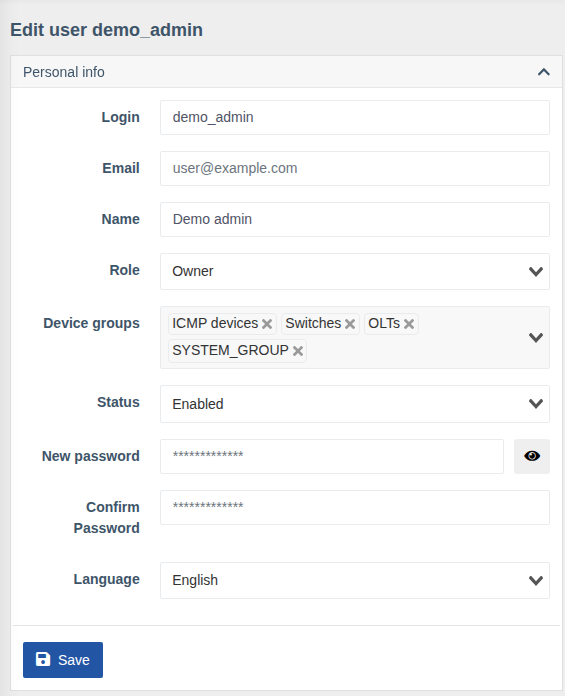
| Field | Description |
|---|---|
| Login | Sign-in name |
| Used to link the user to SSO and as a contact | |
| Name | Display name |
| Role | Role — the user's permission set |
| Device groups | Groups whose devices the user sees |
| Status | Enabled / Disabled. A disabled user can't sign in (including via SSO), but their data and action history are kept |
| New password / Confirm Password | Set or change the password. When editing, leave empty to keep the current password. If password strength checking is enabled, the password must have at least 8 characters, upper- and lowercase letters, a digit and a special character |
| Language | Web interface language for the user |
Click "Save" (or "Create" for a new user).
Other blocks of the card➧
On the user page an administrator can also manage what the user sees in their own Account settings:
- Notifications configuration — contacts for notifications;
- Strict access by IP/network — allowed sign-in addresses/networks;
- Active sessions — view and close sessions, create an API key;
- Portal settings and Interface cards visibility — the user's personal UI settings;
- 2FA — disable two-factor authentication if the user lost access to the authenticator app.
Useful commands➧
wca user:list                              # list users
wca user:change-role <login> [role]        # change role
wca user:reset-password <login>            # set a new password
wca user:reset-ip-strict <login>           # reset IP sign-in restriction
wca user:reset-user <login>                # reset password (becomes equal to login), 2FA and IP restriction
Permissions
Managing users requires "All Users management". Viewing the list without changes — "Display users list".